Disclaimer: This article is intended to specifically help UK advertisers and there may be some differences in the rules if you live in other countries. This article was correct at the time of publication in November 2023. Download the PDF version here
UPDATE: OCT 2024
Google has moved the goalposts again for Sole traders. You may still find the article useful but we advise you to watch this video first. * don’t leave anything to chance. Be as detailed as you can, and provide all the documentation possible, not the minimum.
This process is extremely tricky since Google seem to have removed all telephone support.
If you are a Sole Trader advertising with Google Ads, the chances are you will have received an email informing you that you have to verify your business by a specific date.
Google is asking all advertisers to verify their business to ensure that only reputable, proper businesses are advertising. This verification must be completed by an authorised representative, who is an admin of the Google Ads account and/or the payments profile paying for the ads.
You may at first, think, “No problem, I’ve got this” …However, it seems that when Google first dreamt up the verification program they didn’t consider ‘Sole Traders’. Subsequently, the process for Sole Trader verification is different than that for limited companies. and requires taking steps outside of the verification interface.
This blog post will attempt to help you navigate the process and get your account verified, Let’s begin.
Sole Trader Verification Isn’t Straightforward
When you log into your ads account you’re most likely going to see a banner that looks like this. Don’t ignore it.

Ads Verification For Sole Traders
Once you click the “Get started” button. You’ll see an info panel, this panel is the cause of all the confusion.
Because it is designed for Limited companies only.
As a Sole Trader. There is a high possibility that you don’t pay VAT and you certainly won’t have a Certificate of Incorporation. therefore you may not be able to proceed by using this form alone.

This is why so many Sole traders hit a roadblock.
Look on the top bar and click HELP
*NB / This tutorial uses the old Google ads interface. Google enforced a change to this layout in 2024. I will update the tutorial at some point. Largely the process is the same, you may have to hunt around for some of the settings as they HAVE changed slightly.
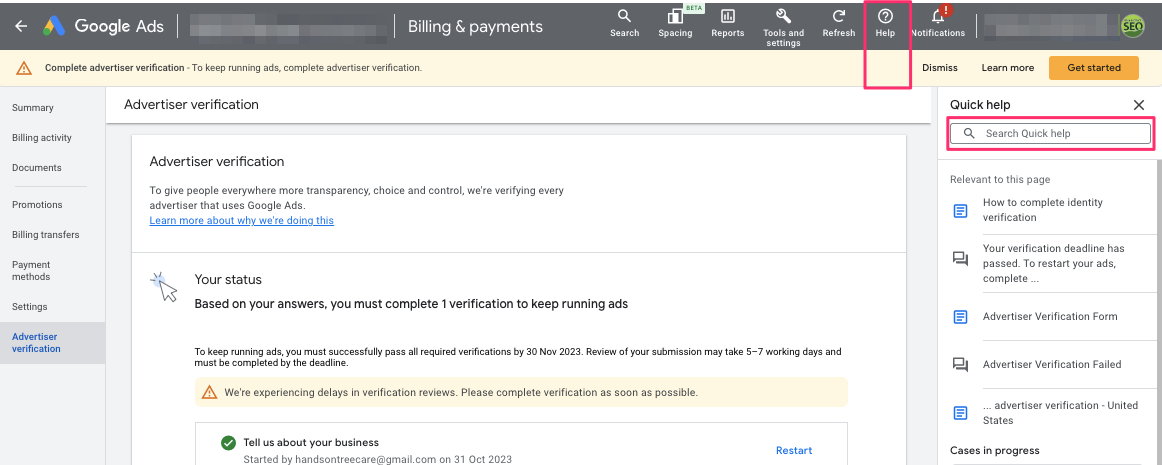
Scroll down to the bottom of the help panel and Click, Contact Us.
Don’t waste time going to the community forums, there is no useful information there other than what you will already know. Hence this blog. You can try this address too. https://support.google.com/google-ads/gethelp
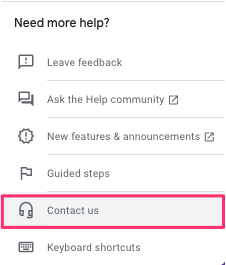
Click Contact Us and choose email as the method of contact.
*I prefer phone but often the operatives are overseas and there will be a time difference, so they may call at an inopportune time, the line won’t be great quality and you may get disconnected. With email, you have a verifiable paper trail.
This will allow you to create a support ticket. Google will then reach out to you via email or phone and they MAY tell you that you have to change the account type.
What does this mean?
When setting up the Google Ad account, you may have set your business up as an “organisation”, rather than as an “individual”. This is understandable because many companies start off as Sole traders and then go Limited later. If you never went Limited, or plan to remain as a sole trader, then your ad account may now be set up incorrectly.
So, you have to give Google permission to change your account type from Organisation to Individual.
Once you receive the email from Google, it will read like this•:
—————————————Start Copy————————– ————-
One Time Approval Template
On behalf of my company, [INSERT COMPANY NAME], I give Google my approval to make all of the following types of modifications in Google Ads Account without first notifying me:
- I authorize Google to update the information associated with my company’s payments profile. I understand this is a change to the entire profile and it should be reflected across all accounts billed to this line of credit.
- Google Ads:
- When should the account switch from monthly invoicing to the new payments profile? (As soon as possible or indicate specific dates in the future):
- Country:
- VAT status: *put Individual
- VAT number (optional):
- Company name (organization):
- Contact name:
- Address:
- Postal code:
- City:
- Province:
- Primary contact name:
- Phone number (required):
- Email address (only emails with valid primary Google account are allowed):
- New payments method**:
- Name and email address who should approve the account take over or changes made:
If authorization is taken from Account Admin/MCC, please add below statement:
Since the account ownership is switching to a different company (different registered company name), please indicate the name and email address of a contact person from the payments profile currently linked to the Google Ads account (the email provided must already be listed as a Billing Contact or have an identical company email domain).
[INSERT COMPANY NAME] will be responsible for any impact these changes have on the account, including impact on campaign performance or spending.
——————————
———–End Copy————————– ——————-
*Before sending your info back to Google be sure to do the checks listed below.
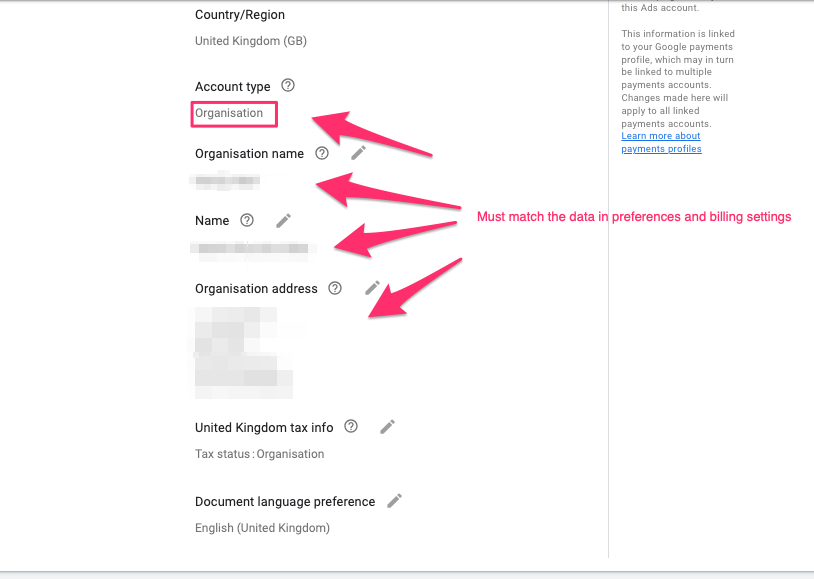
Check your payment details and your account preferences and make a note of what’s in there. The reason We advise doing this is to ensure that the information you provide in the email is exactly the same as what is set up in the billing section of your account.
Here’s how.
Step1:
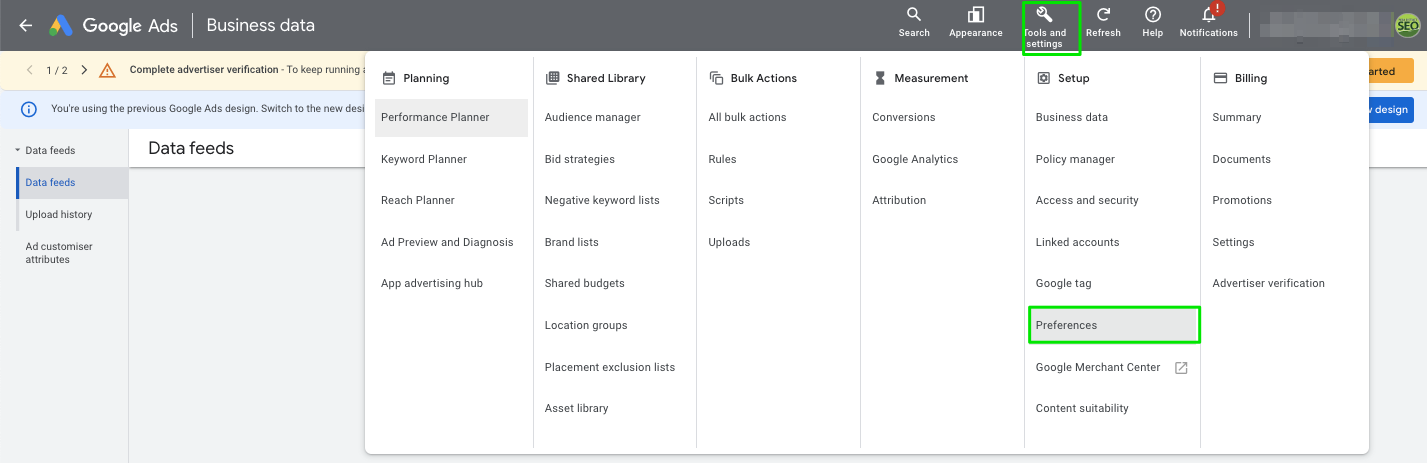
Click Tools and Settings, then choose Preferences.
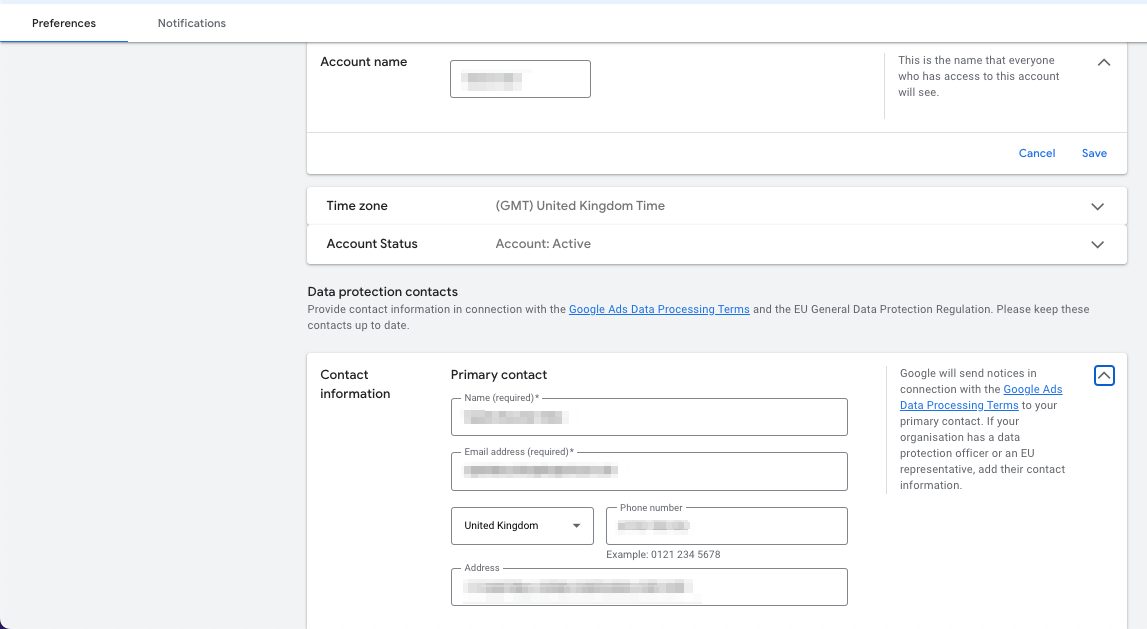
Step 2:
Check that your details are fully filled out. *This isn’t mandatory when launching an account, so many accounts never filled out these form fields. You will need to make a note of what details are here because you’ll need to refer to it when verifying your business.
Check your Billings Settings
Here’s how:
Click Tools and Settings/In the Billing column choose settings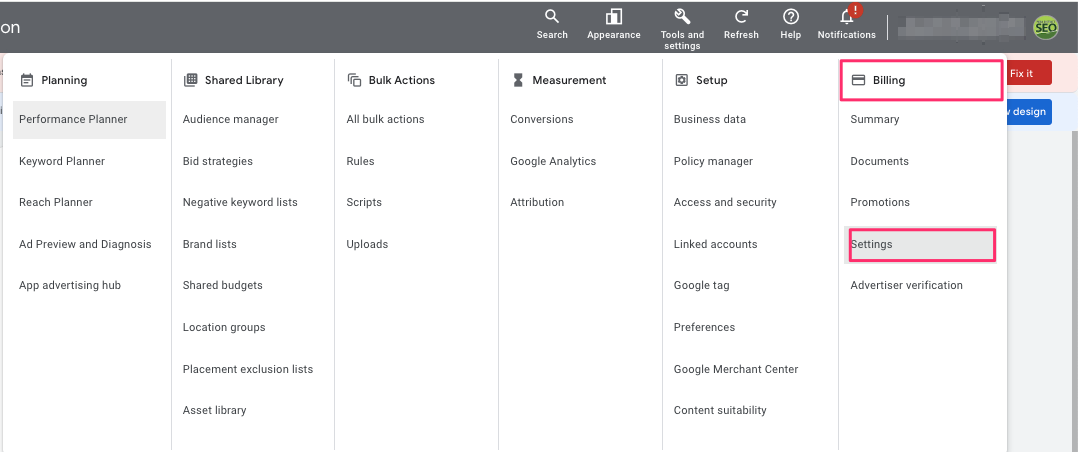

**IMPORTANT – This is the information you will need to match when you’re typing out the authorisation form email. It must match it exactly otherwise your application for verification will keep being rejected.
And Finally….
Okay, now you’ve made a note of your settings and updated them all appropriately, respond to the email with the relevant information.
Within about 72 hours, Google will respond telling you that they have changed your account type.
This isn’t quite the end though.
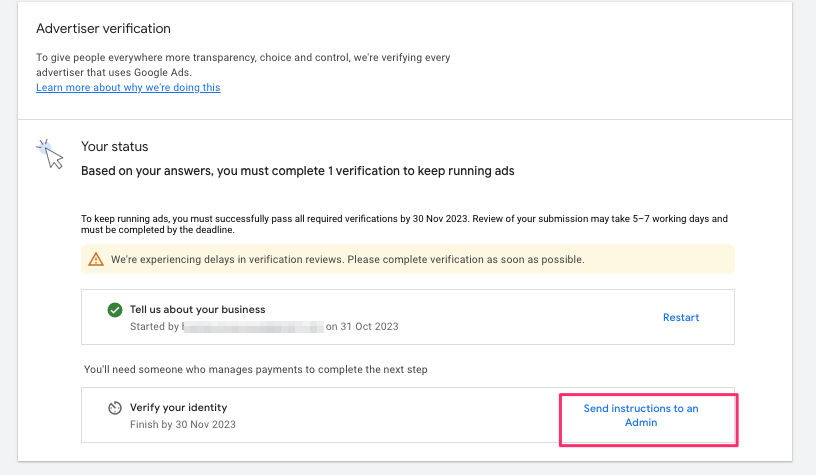
Go back into your Ad account, Click Tools and Settings / Billing / Advertiser Verification.

This will bring you to a slightly changed verification screen. Look for the Link: ” Send instructions to an Admin”, and click it.
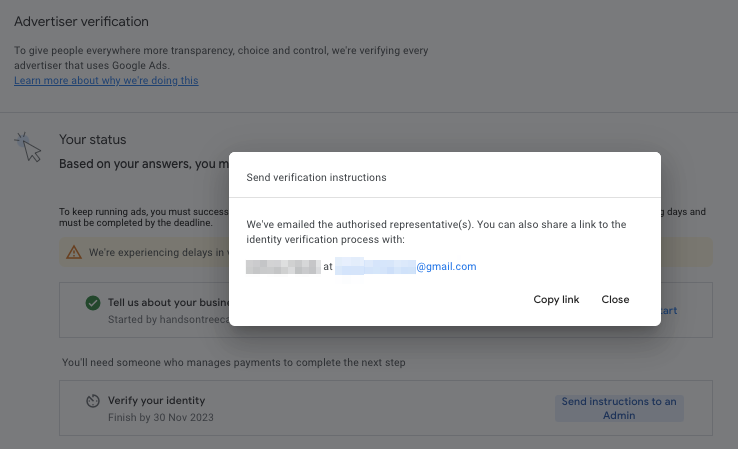
Then you’ll get a popup box saying send verification instructions….it says Google has emailed the payment admin (you *unless you have an ads manager, it may be them). All the admin has to do is follow the instructions on the email and the account will be verified.
Download the instructions in PDF format
Phils Ranty bit:
I’m personally frustrated, (No, angry) with Google about all this ad verification nonsense. They have a tendency over the years to roll out software and changes to websites without fully thinking it through, and this is just another example of their poor planning and communication.
They are making small businesses jump through hoops, which can be timely and complicated. I mean, who is paying us for all the time we have to spend on these tasks?
I’d urge everyone to complain to Google, but I know most of you won’t bother, so rant over.
Anyway, I hope you found this guide useful, and perhaps in return you might share the link or even share the article on Social media. If you manage to get this sorted from my tutorial, please consider leaving a review for Peak District SEO.
Follow here:
https://www.instagram.com/peakdistrictseo @peakdistrictseo
You may also like
- Finding the Right AdWords Management Agency
- Google Ads Verification For Sole Traders – Navigating The Nightmare
- The Peak of Google Ads Buxton
- PPC Case Study: How Peak District SEO Drives Stellar Results

I’m Phil Gregory, the MD and founder of Peak District SEO.
I’m an SEO & Google Ads Consultant with 28+ years of experience in I.T and helping UK Businesses improve website performance.
I built my first website in 1998, then I discovered the joys of website optimisation and never looked back.
If you want a no-nonsense, no-hard-sell approach and to actually get your website fixed with a solid, affordable, long-term approach, hit the contact button today.
Peak District SEO is a UK-based Digital Marketing Company.
We help businesses make more money, using traditional Search Engine Optimisation (SEO) , Ai Search / GEO and paid advertising (PPC).
Why Peak District SEO?
27+ years of experience.
80+ 5* reviews on Google
Our customers have hundreds of page one and position 1 rankings, and we can prove it.
We’ve helped hundreds of SMEs in the UK
We have numerous articles published across the web discussing SEO.
We regularly publish case studies about the work we’ve done
Customers trust our service – See our reviews on Google, Trustpilot and Facebook
Our customers have hundreds of page one and position 1 rankings and we can prove it.